
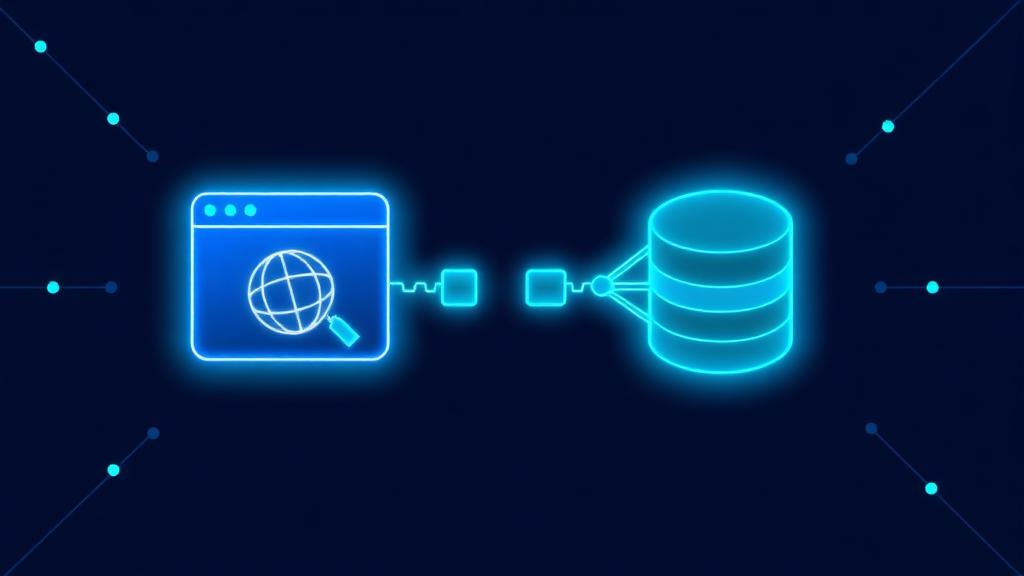
Error Establishing a Database Connection in WordPress
This error looks alarming, but it rarely means your content is gone. Here’s exactly what’s happening, what to check first, and when it’s safe to fix it yourself.
“Error establishing a database connection” is one of the most common WordPress errors — and one of the most misunderstood. It doesn’t necessarily mean your data is gone. It means WordPress couldn’t talk to its database when the page loaded.
What this error actually means
Every WordPress site stores its content (posts, pages, settings, users) in a MySQL database, separate from the WordPress files themselves. This error appears when WordPress’s files load fine, but the connection to that database fails — like a phone that powers on but can’t get signal. The files and the data are usually both intact; it’s the link between them that’s broken.
The most common causes, in order of likelihood
- Incorrect database credentials in
wp-config.php— by far the most frequent cause, often after a site migration, a hosting change, or a password reset on the database itself. - The database server is overloaded or temporarily down — common on shared hosting during traffic spikes, when many sites compete for the same database resources.
- A corrupted database table — usually from an interrupted update, a failed plugin installation, or an abrupt server shutdown mid-write.
- Corrupted WordPress core files — from a malware infection, a failed update, or an incomplete file transfer during a manual migration.
How the credentials check actually works
WordPress connects to its database using four pieces of information stored in a file called wp-config.php, sitting in your site’s root folder: the database name (DB_NAME), the database username (DB_USER), its password (DB_PASSWORD), and the database host (DB_HOST). If any one of these doesn’t match what your hosting account actually has configured — which happens easily after a migration or a password change — the connection fails immediately, every time, for every visitor.
Fixing this means opening wp-config.php through your hosting file manager or FTP, comparing those four values against your hosting control panel’s database section, and correcting whichever one is wrong. It’s a five-minute fix once you know where to look — and a frustrating one if you don’t, since a single mistyped character keeps the error showing.
When it’s the database itself, not the credentials
If credentials check out but the error persists, the next suspect is the database tables themselves. WordPress includes a built-in repair tool (accessible by temporarily adding one line to wp-config.php) that can automatically repair tables that became corrupted mid-write. Alternatively, this can be done directly through phpMyAdmin (available in most hosting control panels) by selecting the database, selecting all tables, and choosing “Repair Table” from the actions menu.
How to tell which one you’re dealing with
If your WordPress admin area (/wp-admin) also fails with the same generic error, that points toward credentials or server-level trouble. If the front end is broken but /wp-admin instead shows a notice like “one or more database tables are unavailable,” that’s a stronger sign of table corruption specifically — a more targeted (and usually easier) fix.
What this error does not mean
It does not automatically mean your content is lost. The database holding your content is very often completely intact; it’s the connection to it that’s failing, which is a different and usually fixable problem. Treating it as “everything is gone” leads people to restore old backups unnecessarily — sometimes losing more recent content in the process for nothing.
Before you touch anything
Take a backup first, even a manual one (your hosting file manager can usually zip the site folder, and most control panels offer a one-click database export). If a fix attempt goes wrong, having a snapshot from right before you started means you can always step back to a known state.
Prefer not to deal with this yourself?
If this is happening on your live site right now and you’d rather not risk editing wp-config.php yourself, we can take care of it.
Get It Fixed Today →
I fix and maintain WordPress sites for a living. No jargon, no upselling — just an honest diagnosis and a fix that lasts. More about me →
Common Questions
Does this error mean I lost my website content?
Usually not. The database holding your content is very often untouched — it’s the connection to it that’s failing, which is a different (and usually fixable) problem.
Where exactly do I find wp-config.php?
It sits in the root folder of your WordPress installation, accessible through your hosting file manager or an FTP client. It’s one level above the wp-admin, wp-content, and wp-includes folders.
Can I fix this myself without touching code?
Sometimes — if it’s a temporary server overload, waiting and refreshing can resolve it. If it’s a credentials issue after a migration, it requires editing a configuration file precisely, which carries real risk if a character is mistyped.
Is this the host’s fault or WordPress’s fault?
It can be either. A correctly configured WordPress install can still show this error if the hosting server’s database service goes down, which is entirely outside WordPress’s control.
What’s the very first thing I should check?
The four database values in wp-config.php (DB_NAME, DB_USER, DB_PASSWORD, DB_HOST) against what your hosting control panel actually shows for that database. This single mismatch causes the vast majority of cases.
Get Your Free Site Checkup
Drop your website URL and tell us what’s going on — or just say “take a look and tell me.” We’ll review it and tell you exactly how to fix it. Takes one minute.
Not sure what’s wrong, or which option fits you? Tell us here — we’ll always point you the right way.
For more details, see WordPress.org's official troubleshooting guide.
Related: see how the full WordPress repair process works.